Click Enter Permit Application under Quick Links to help you enter the Permit Application page in the selected jurisdiction.
OR
Click the Permit Application tab in the Jurisdiction Site page to proceed to the Permit Application page.
Permit Application Page
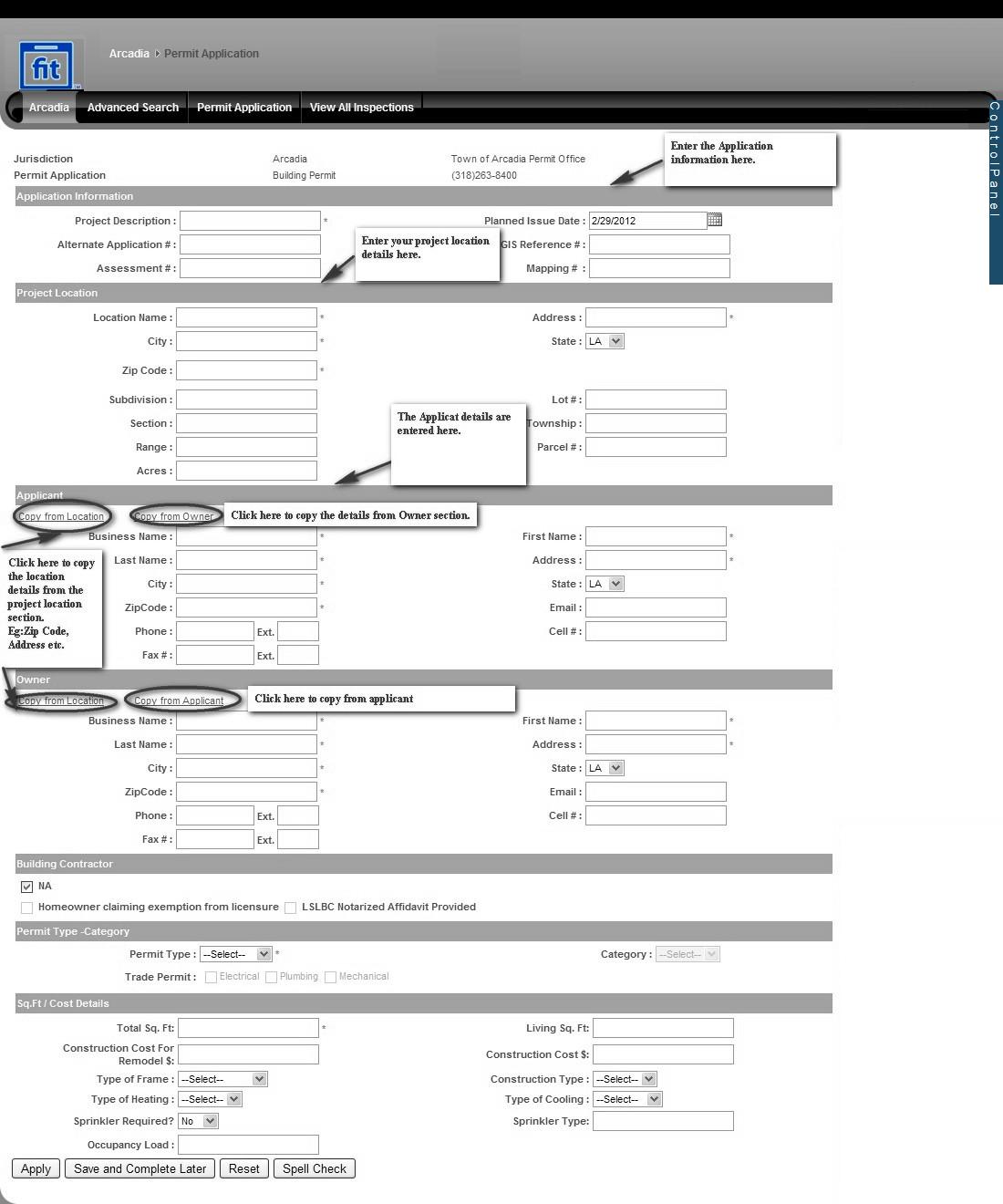
The Permit Application page is widely used by Applicant, Jurisdiction, and IBTS Staffs to apply or manage the permit application. The registered portal users can add new application and edit the permit details using this option. The Portal Users have only limited view of this web page. The Permit Application page appears as follows:
To enter a permit application, do the following:
Enter the Permit application data for the project beginning with the Application Information.
Next, enter the Permit application data related to Project Location. For this, you require to fill in data for the following sections. For more information on these sections, click on the hyperlinks below:
As you move down the page the following sections appear. Again, for additional information you can click on the hyperlinks.
If you are unable to complete the application, click Save and Complete Later and the permit information will be saved in your Incomplete Permits lists.
If all details are entered and completed, click Apply to save a completed permit application.
Click Reset to clear the entries made in this page.
Click Spell Check to perform the sell check function in the permit application.
Notes:
When you initially enter and save a new permit application, the status of the permit application changes to ‘Draft’ and it will be listed under My Permits in Home page.
On clicking Save and Complete Later button, the application auto-generates and assign a Permit number for the permit. Write this number on the hard copy of the application and any other accompanying documents for reference purposes.
Planned Permit Issue Date is calculated as Application date + 180 days.
The Permit Application page consists of the following sections and is explained in detail below:
Application Information
Project Location
Applicant
Owner
Building Contractor
Permit Type Category
Sq. Ft/Cost Details
Control Panel
The Control Panel displays the general information about the permit. This panel is found on the right side of the page and displays the following:
The current status of the permit as it flows through the system
Navigation of the Permit Application page
Expand All and Collapse All feature
Actions that can be performed on the permit
Fee summary of the permit application
An audit trail of all the recent events related to the permit
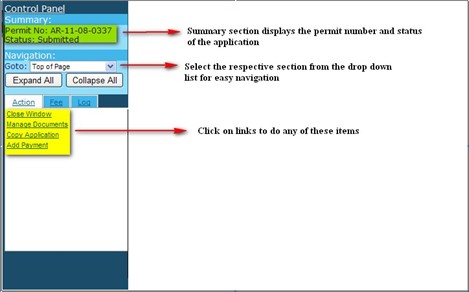
Click Expand All to expand all sections of the permit application page.
Click Collapse All to collapse all the sections.
To expand just one section of the page, click the respective section heading and then click again the same section heading to collapse the section.
Action tab
The Actions tab lists the different actions needed based on the current status of the permit. Some of the main actions are listed out below:
Close Window – closes the Add/Permit page without saving the data
Manage Documents – manage the documents relating to the permit
Copy Application – copy the permit application
Add Payment – proceed to Fee Payment page
Fee tab
In the Fee tab, it provides the summary information about permit and plan review fees and payments.
Log tab
Log tab provides an audit trail of the actions performed on the permit, the date it occurred and the user that performed the action.