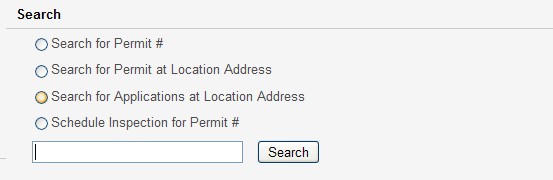
The IBTS application has multiple search options. Based on the Search type, the Search screen and the fields in the Search screens differs. However, functionality of all search screens remains the same.
The different Search types are:
Search for Permit #
Search for Permit at Location Address
Search for Applications at Location Address
Schedule Inspection for Permit #
To search, do the following:
Select a search type using the option button in the Home page under Search section as shown below:
Enter the exact permit number or exact location address in the text box provided.
Click Search to search for the permit and you are redirected to Advance Search page and display the search results if the permit was found.
Click Save Search to put a link to the search criteria under Saved Searches on the Home page as shown below:

Click Export to Excel to export the result to an excel file.
Click Reset to clear all the fields.
The search results are displayed in the grid with Permit#, Address, City, Permit Type, Category/Trade Permit, Status, Applicant, Planned Issue Date and Jurisdiction as shown below:
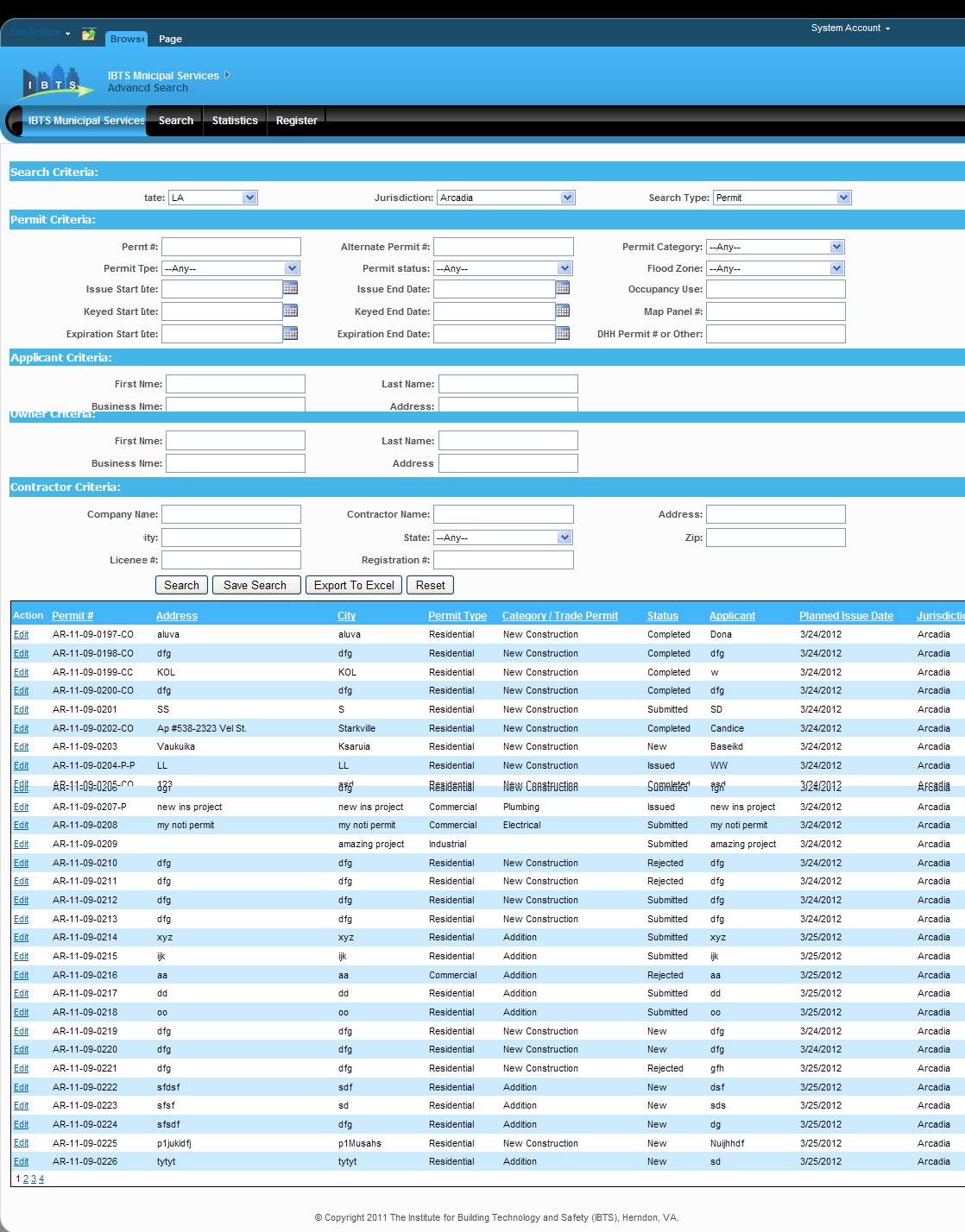
Click Edit link in the grid to view or edit the permit.
If the search results do not match with the permit that you are searching for, click Home icon to return to the Home page.
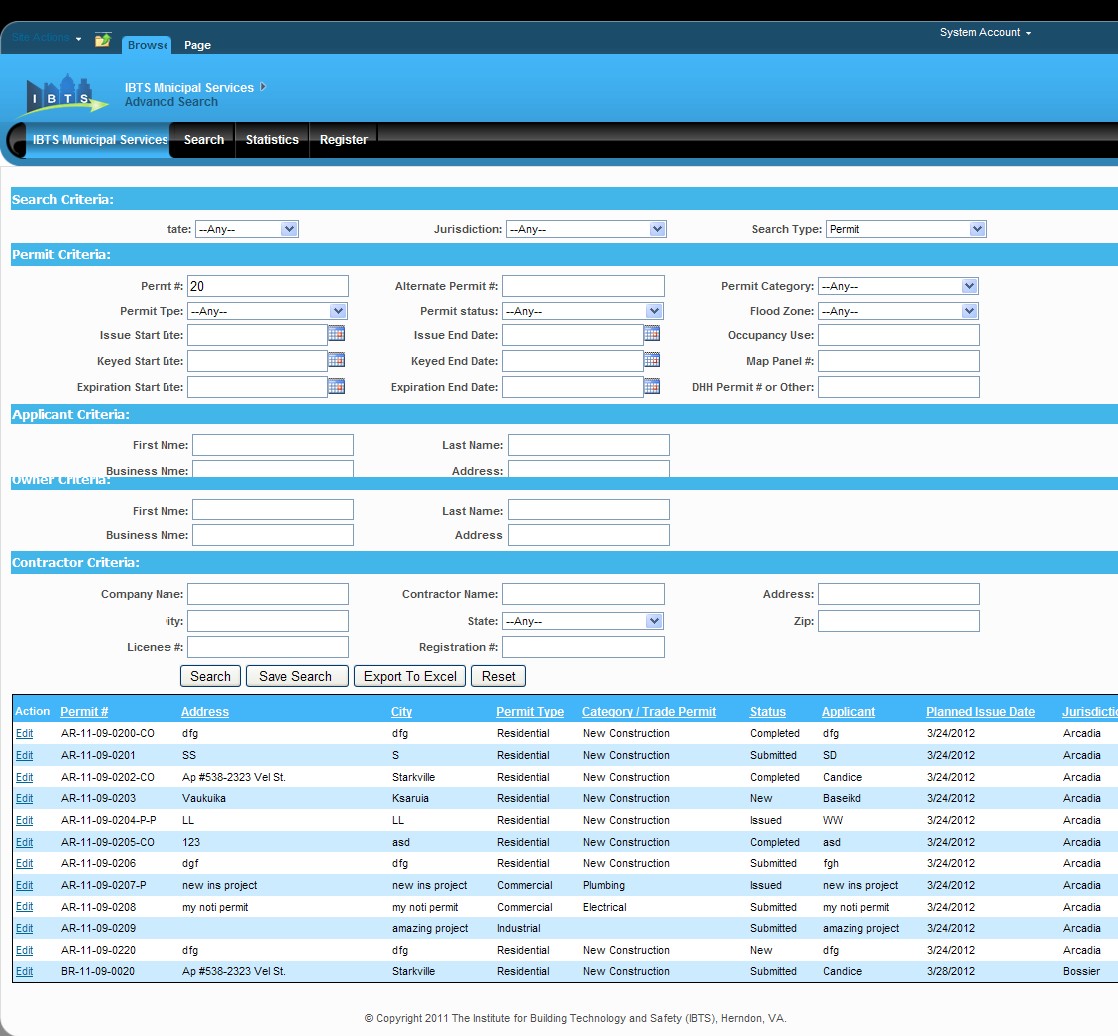
If you entered an exact Permit Number or Location Address and clicked Search from the Home Page and did NOT get a record, it takes you to the Advanced Search page as shown below:
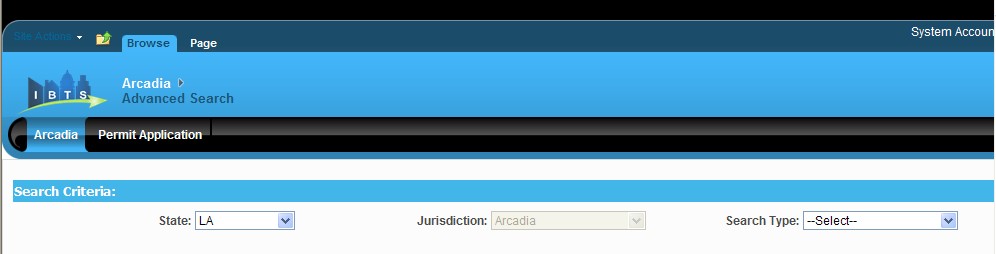
Select the Jurisdiction and Search Type to provide you with different search criterion and thereby search for the permit that you need as shown below:
Enter data in Permit Criteria/Applicant Criteria/Owner Criteria/Contractor Criteria fields.
Click Search at the bottom of the page.
Click Reset to clear all the fields.